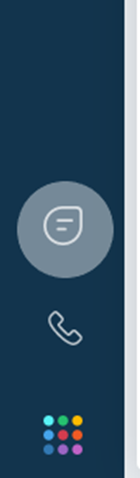
Click the  icon on the lower left-hand side of your Freshdesk Interface or select the minimized chat window if opened.
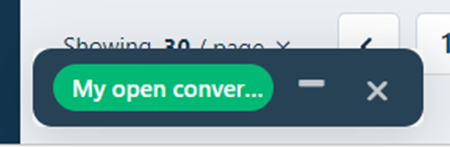
Select the green widget tab to open Chat View:
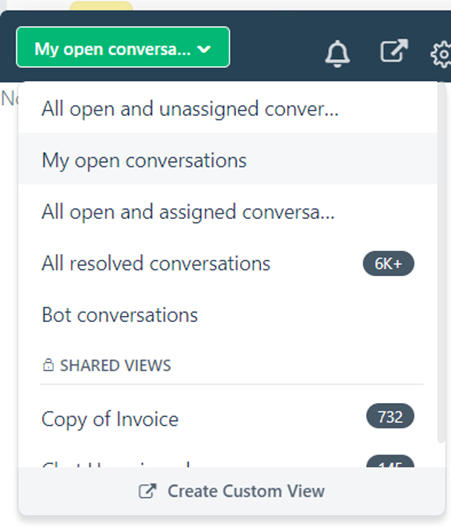
View Categories:
- All Open and Unassigned – These are ideally active chats with a user waiting to be assigned to an agent.
- My Open Conversations – Any open, active conversations that have been assigned to you specifically
- All open and assigned conversations – Show any assigned conversations you and other agents are taking
- All resolved conversations - Closed/Resolved
- Bot conversations - Show the start of an incoming chat/ticket inquiry as the customer has to provide information before going into All Open and Unassigned
Go to All Opened and Unassigned:
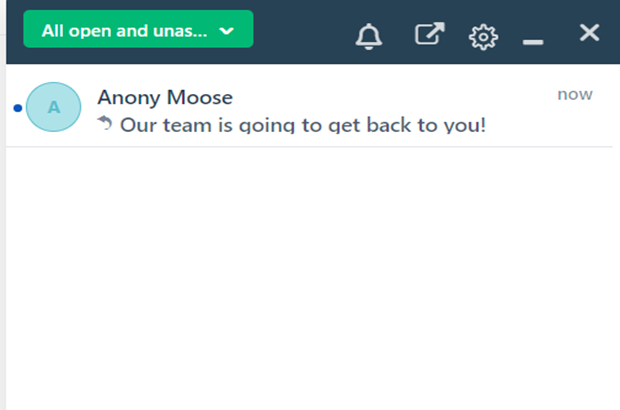
Select chat from list/queue.
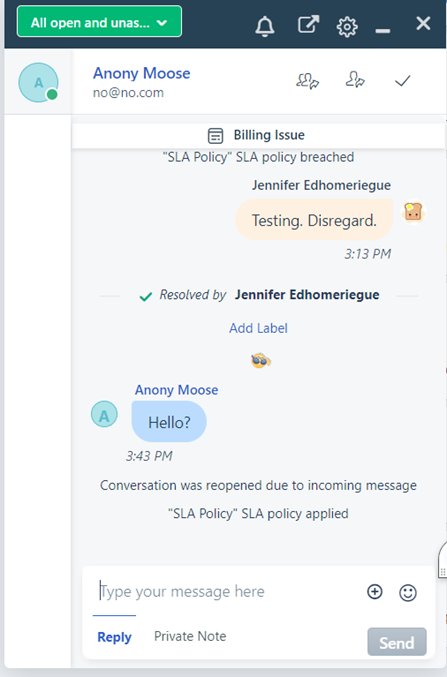
Type greeting message and hit “Send” at lower right-hand corner of chat or select the  icon to assign the chat to yourself.
Happy chatting!
 Please pay special attention to the “SLA Policy” at the start of a chat. “SLA Policy breached” message will come up if the incoming chat has been waiting for longer than a minute. We’re trying to keep this to 2 minutes and under.
Was this article helpful?
That’s Great!
Thank you for your feedback
Sorry! We couldn't be helpful
Thank you for your feedback
Feedback sent
We appreciate your effort and will try to fix the article